

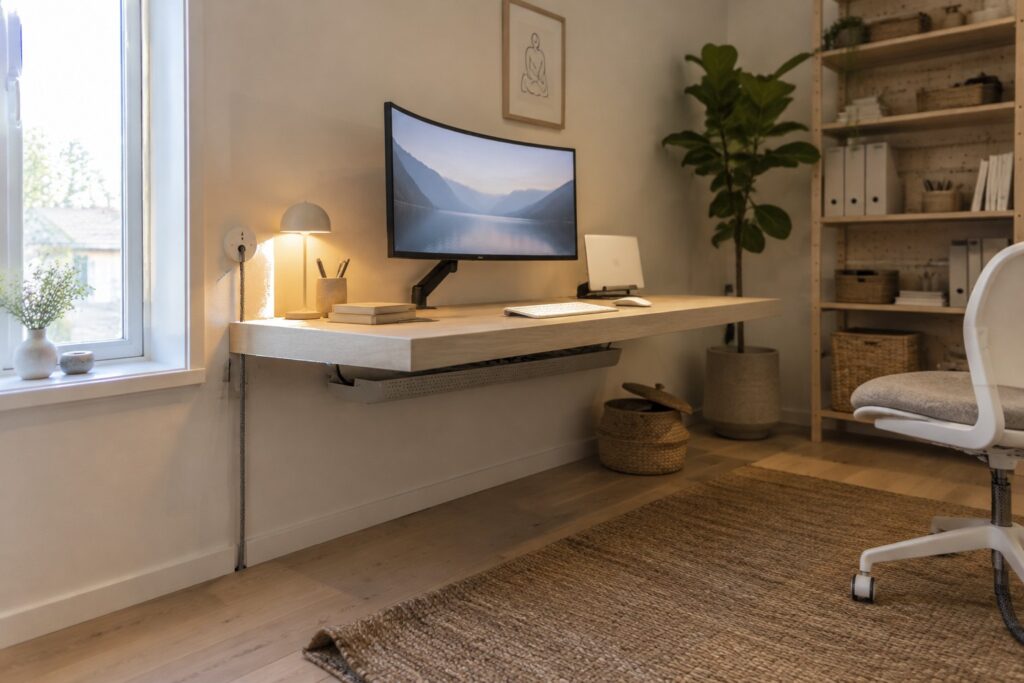
I have found that a home office only feels workable once the layout accounts for how cables will actually sit once everything is plugged in and in daily use.
In spaces where I have tried to keep things tidy before, the cords from chargers and monitors always seem to be the detail that makes the room feel less put together than I intended.
Planning cable routes early changes how the whole desk area functions when you are sitting there for hours at a time.
It changes everything.
Trying out a few routing methods in my own setup has shown me which ones stay neat over weeks of use and which ones slip back into clutter after the first busy day.
Wall Mounted Desks With Cable Management
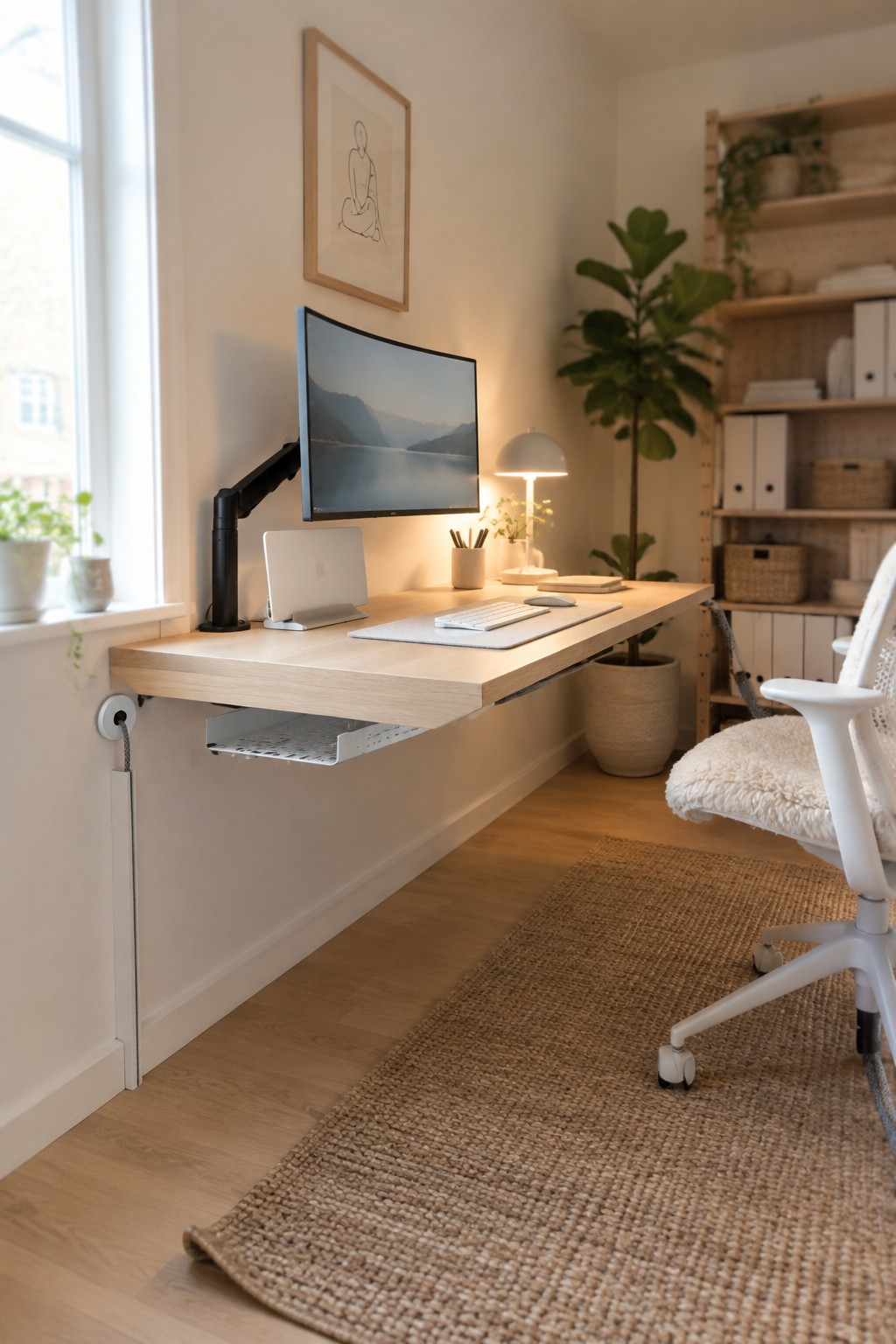
Mounting a desk straight to the wall lets you run cables down through a channel or box instead of letting them trail across the floor. It keeps the surface clear and makes the whole setup feel less cluttered in a small room.
This approach works best in spaces where floor room is tight or you want a simple look without a big desk base in the way. Just check that the wall can support the weight and leave enough clearance for your chair.
Use a Desk Grommet for Cleaner Cable Management

A desk with a built-in grommet helps keep power cords and monitor cables from cluttering the work surface. It creates a smoother look and makes the whole setup feel more intentional, especially in a smaller room where every cord shows.
Place the grommet near the back edge so the monitor and keyboard wires drop straight through. This works well in most home offices since it needs no extra hardware and pairs easily with a simple power strip tucked underneath.
Corner Desks With Natural Materials

A small workspace built into a quiet corner often works better when it uses wood, woven pieces, and a few plants instead of trying to look like a full office. The warm tones and simple shapes help the desk blend into the rest of the room so it does not take over the space.
This kind of setup suits apartments or homes where the work area shares space with living or sleeping zones. Keep the surface clear, add one or two storage baskets on nearby shelves, and choose a chair that feels comfortable for longer hours without adding bulk.
Add Built-In Power Outlets To Your Desk
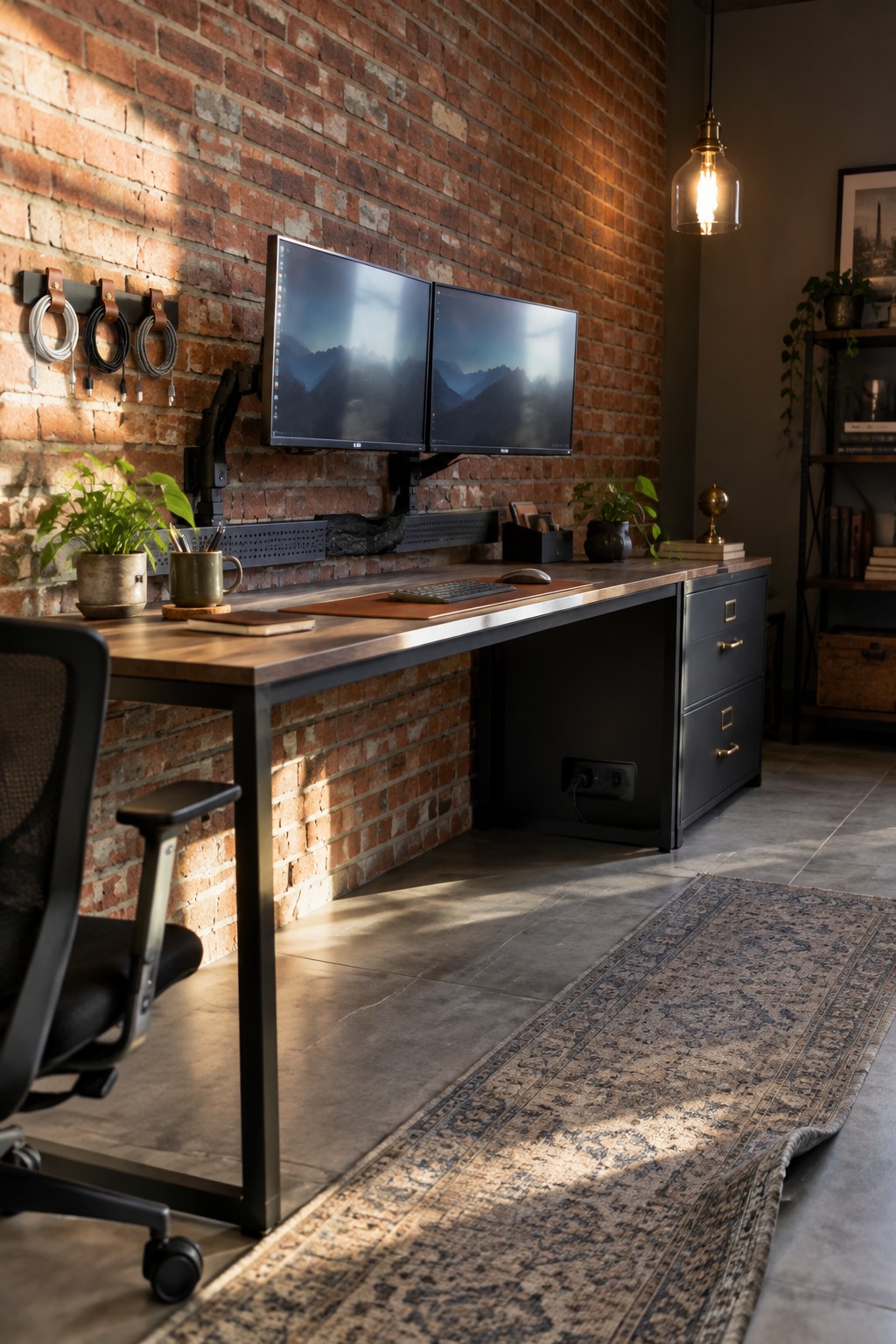
Having power outlets built right into the desk or cabinet side makes cable management much simpler. You can plug in monitors, chargers, and lamps without running cords across the floor or letting them pile up on the surface. This keeps the workspace cleaner and safer, especially in smaller rooms where every inch counts.
This approach works best in home offices that see daily use and need several devices running at once. Look for desks or storage units with outlets already installed on the side or back panel so cords stay short and out of the way. It suits most setups and cuts down on the usual tangle of cables.
Built-In Overhead Cabinets Clear Desk Clutter
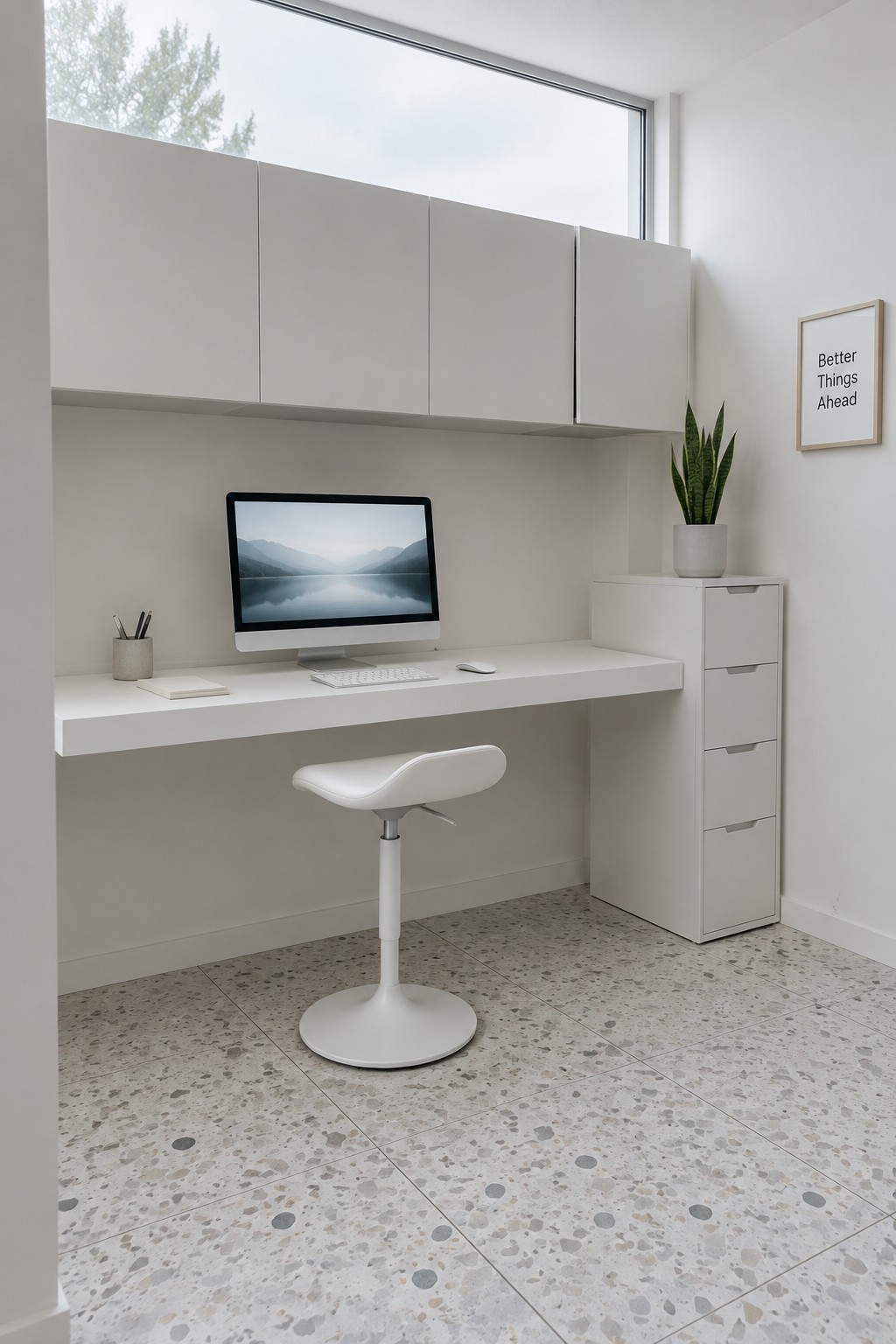
Many home offices end up messy because there is nowhere to put the everyday stuff without leaving it on the desk. Overhead cabinets solve that by giving you storage right above the work surface so papers, pens, and small equipment stay out of the way but still close at hand.
This approach works best in smaller rooms or tight corners where floor space is limited. The floating desk underneath stays open and easy to clean, which also makes it simpler to keep cables tucked away instead of running across the surface.
Hide Cables in an Under-Desk Basket
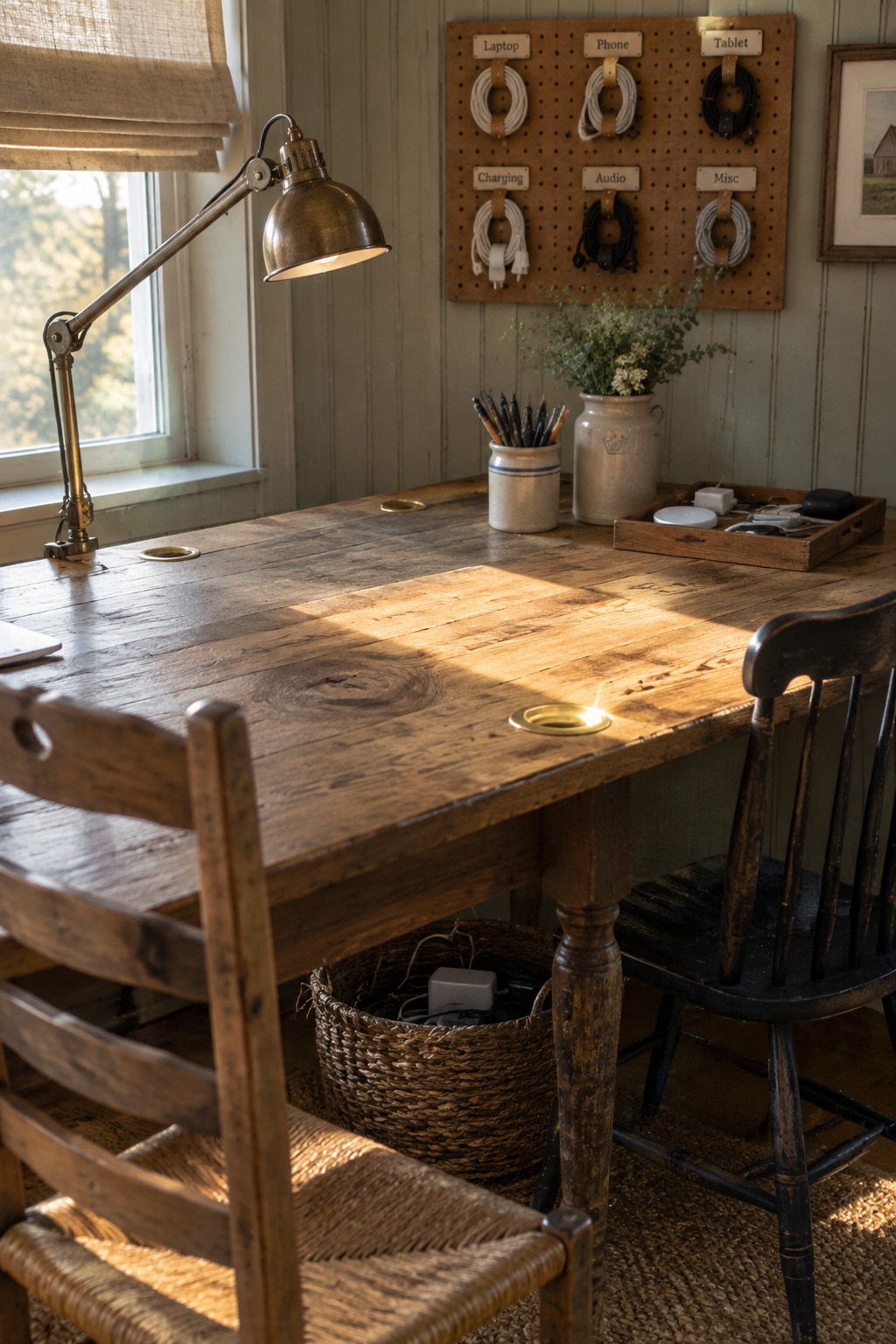
A basket under the desk is one of the simplest ways to deal with cable clutter in a home office. It keeps cords contained without any drilling or special hardware, and the desk surface stays clear for actual work.
This works well with older desks or smaller rooms where built-in cable holes are limited. Place the basket near the back of the desk so it stays out of the way, and only pull out what you need when you need it.
Under Desk Cable Trays For A Cleaner Workspace
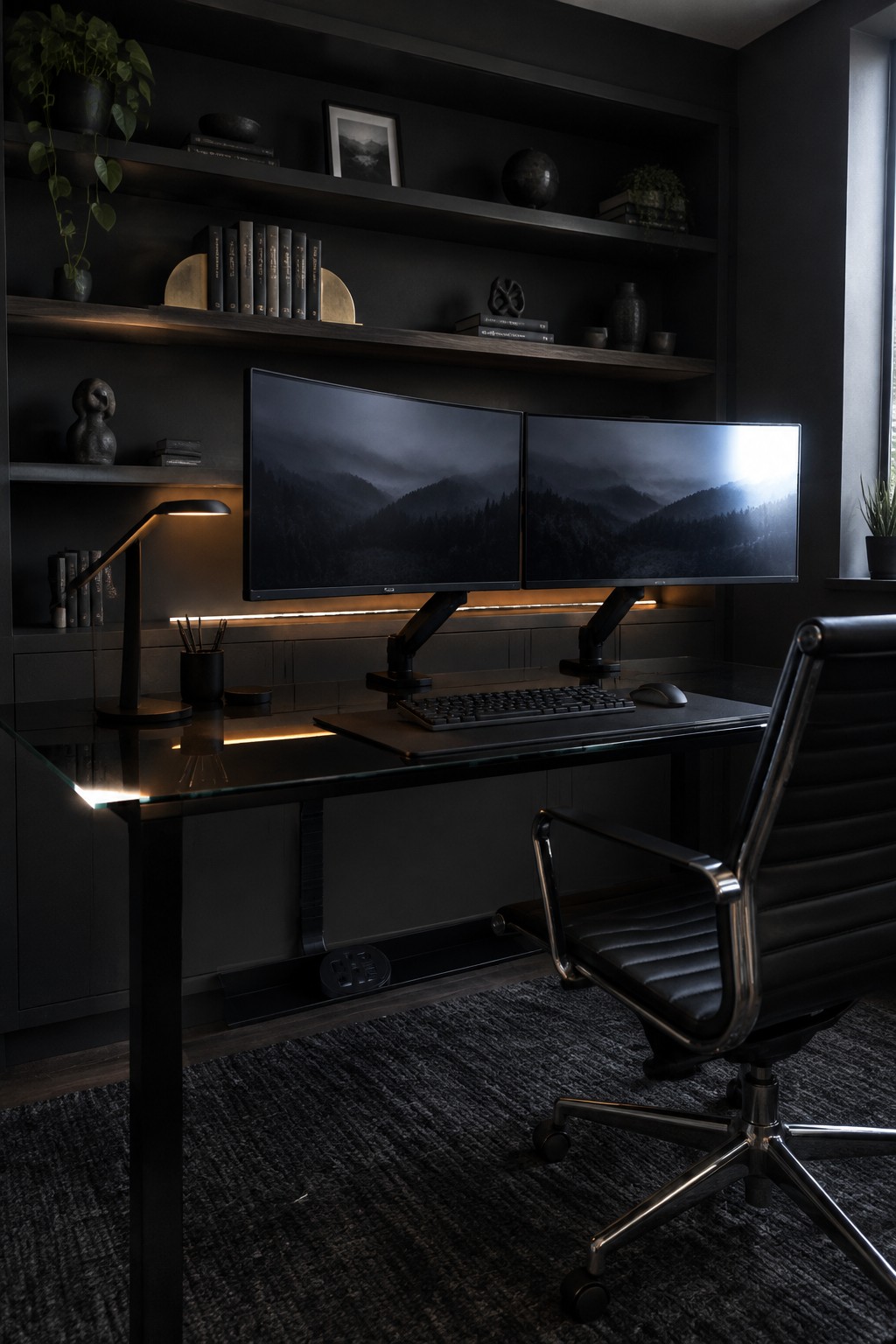
One of the simplest ways to improve a work from home setup is to add a cable tray under the desk. It keeps all the cords off the floor and out of sight while still letting you reach them when needed. The glass desk in this example shows how the tray sits low enough to stay hidden but high enough to do the job without extra clutter on top.
This approach works in almost any home office because most desks can take a basic tray with just a few screws. It is especially useful when you have multiple monitors and a keyboard setup that would otherwise leave wires everywhere. Just measure your desk depth first and pick a tray wide enough to hold power strips and adapters without crowding.
Built-In Window Desks for Hidden Cables
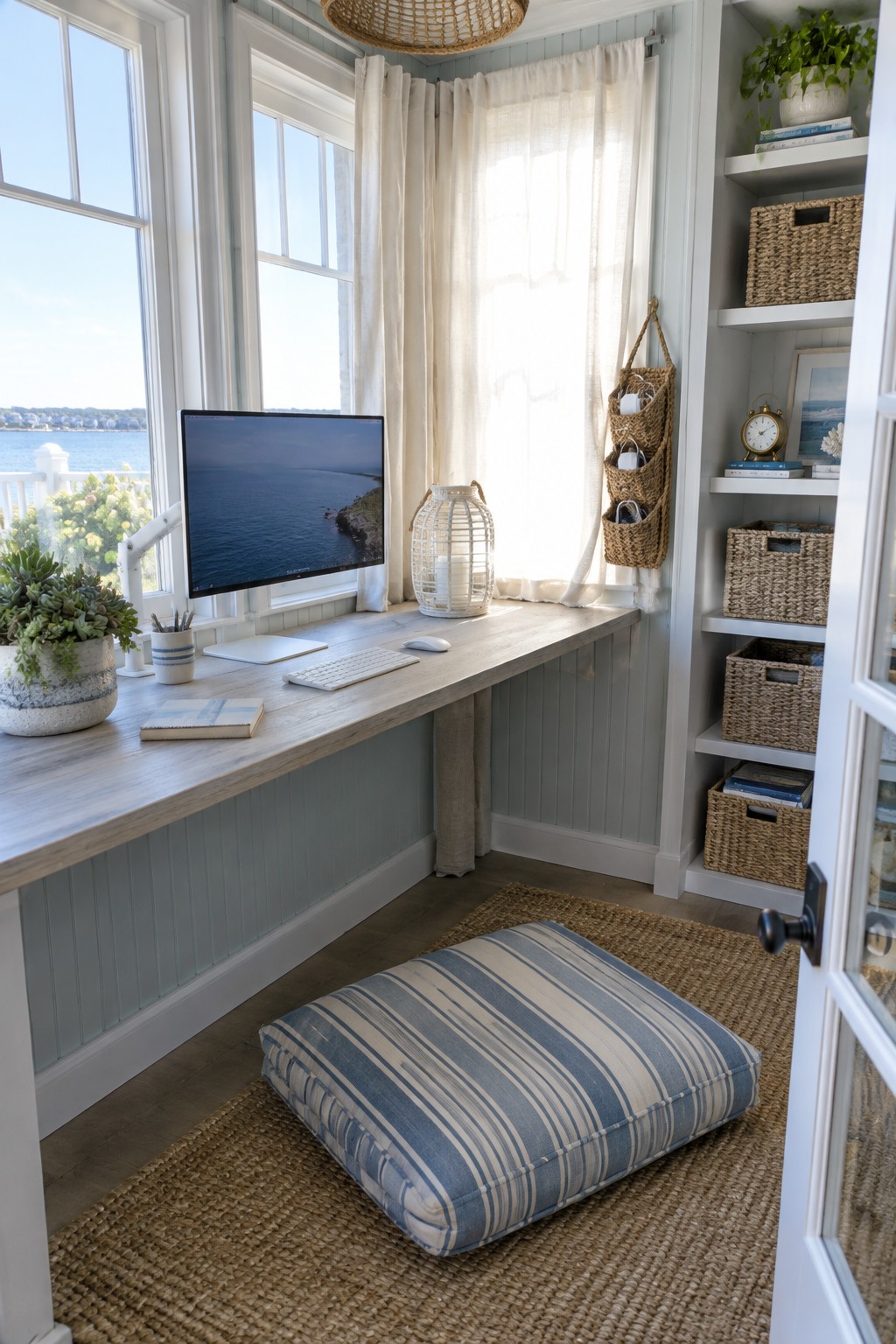
A built-in desk that runs along a window wall keeps the workspace simple and gives you a place to hide cables behind or under the surface. The long surface leaves room for a monitor, keyboard, and a few essentials while the lower paneling and side unit help contain everything else out of sight.
This setup works well in smaller rooms where a freestanding desk would crowd the floor. Pair it with open shelving on one end for baskets and everyday supplies so the whole area stays tidy without needing extra pieces of furniture.
Built-In Desks With Monitor Arms

A built-in desk with monitor arms keeps the work surface clear and makes it easier to handle cables without them running across the desk. The setup works well when you want two people sharing the same long surface without the usual clutter of stands and wires.
This approach suits homes where space is limited or where you want a permanent office zone that still feels part of the room. Mount the arms to the back of the desk or the wall behind it, then run cables down through holes or along the back edge so everything stays out of sight.
Fold Down Desk In A Closet
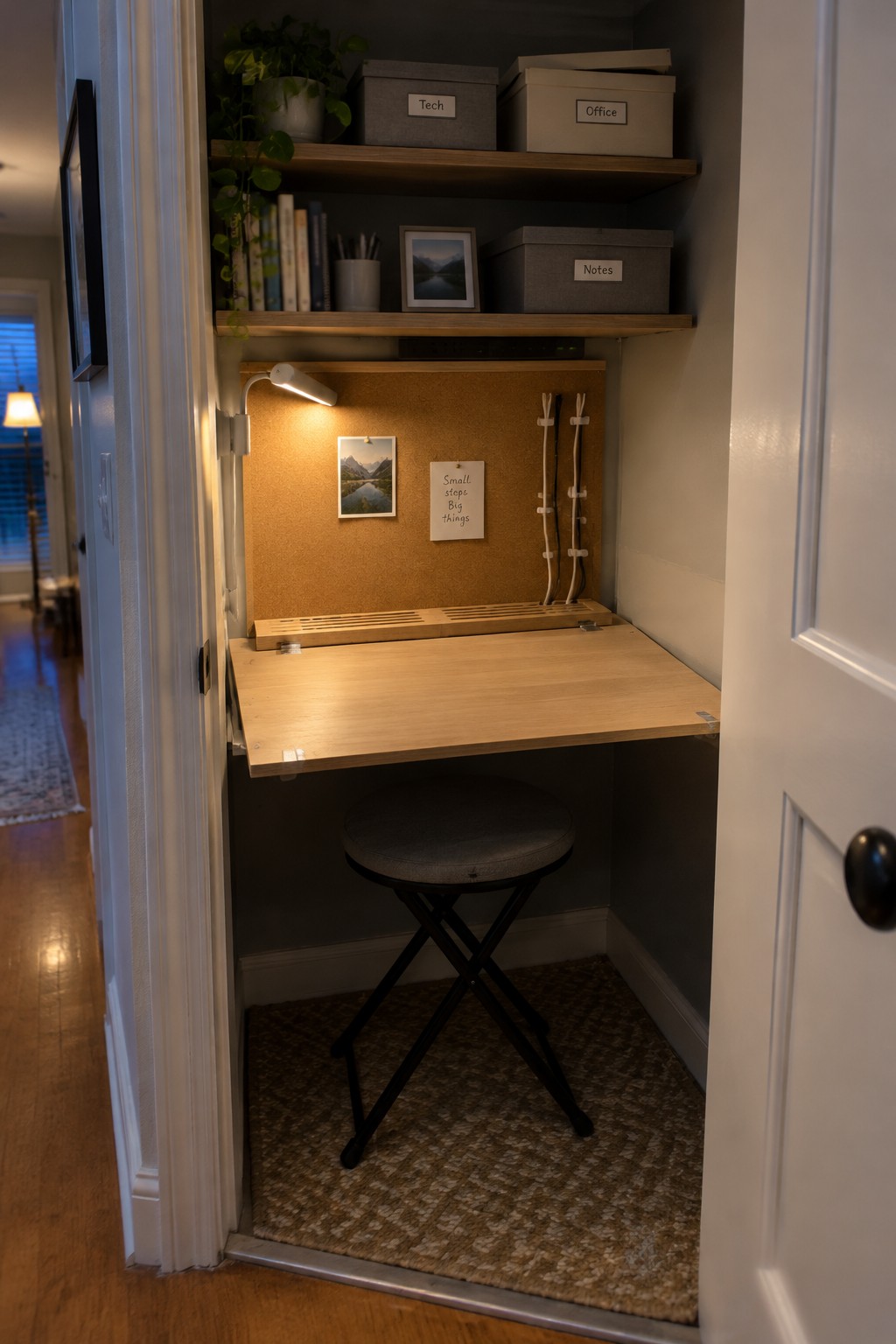
A fold down desk inside a closet gives you a real workspace without losing the room to an office all day. It tucks away when you are done, and the small footprint makes it easy to add in homes that do not have extra square footage to spare.
The cables stay out of the way when you use simple clips or channels on the back wall so nothing tangles when the desk goes up. This setup works best in apartments or smaller houses where one room has to do more than one job.
Hide Cables By Placing The Desk Against The Wall

Placing the desk flush against the wall lets you run the lamp cord and any other cables behind the furniture where they stay out of view. This simple move cuts down on floor clutter and keeps the workspace looking calm even when the lamp stays on for long hours.
It works best in smaller rooms or setups where outlets sit behind the desk area. Measure your cords first so nothing pulls tight, and leave a small gap if you need to reach plugs later.
Built-In Desks With Hidden Cable Storage
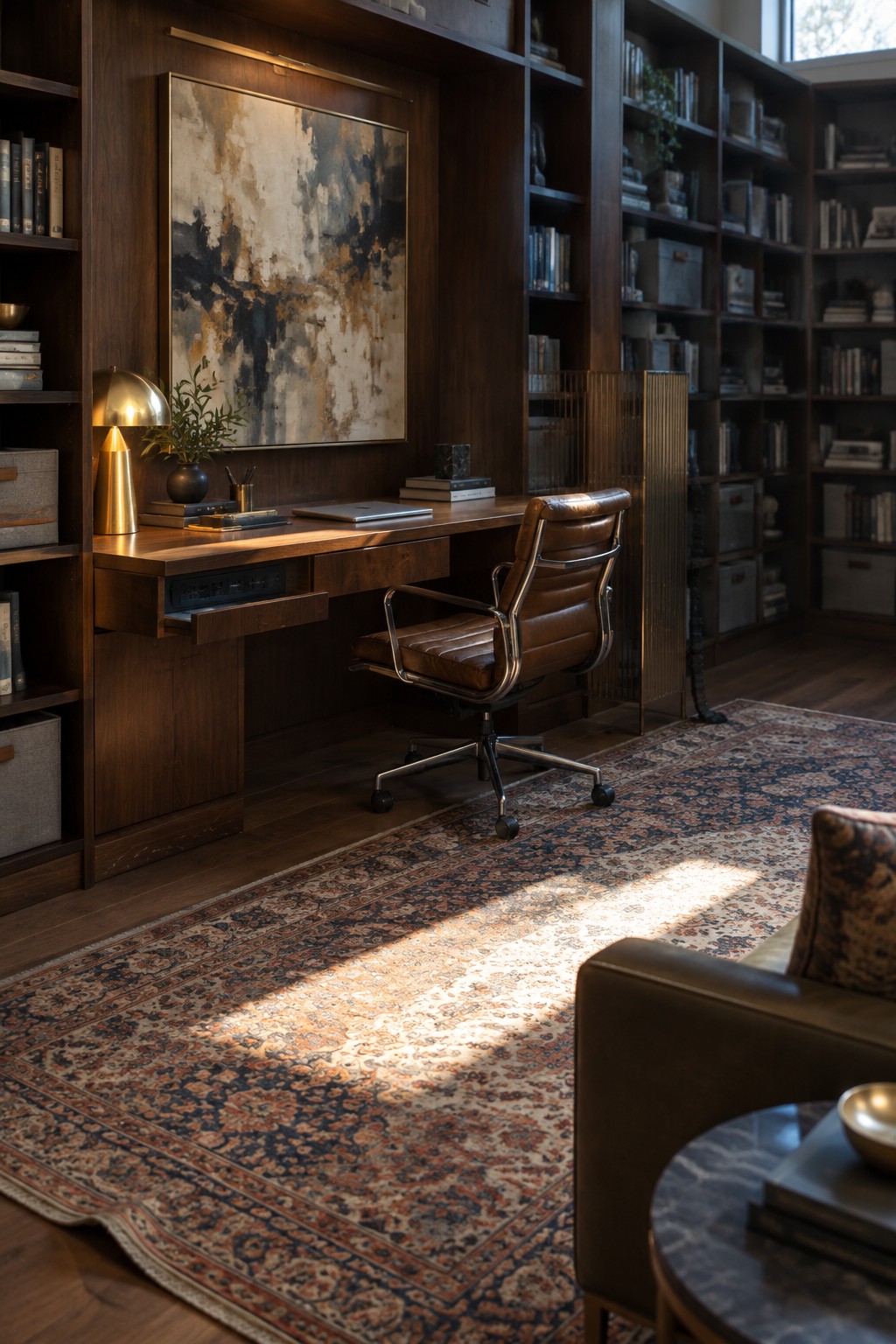
A built-in desk with its own drawer for cables solves the usual mess without adding extra furniture. The drawer keeps power strips and cords out of sight while still letting you reach them when needed.
This approach works best in rooms where the desk sits against a wall or inside a larger shelving unit. Measure the drawer depth against your actual power needs before you build, and leave a bit of extra room for future devices.
Wall Mounted Desk With Cable Rack
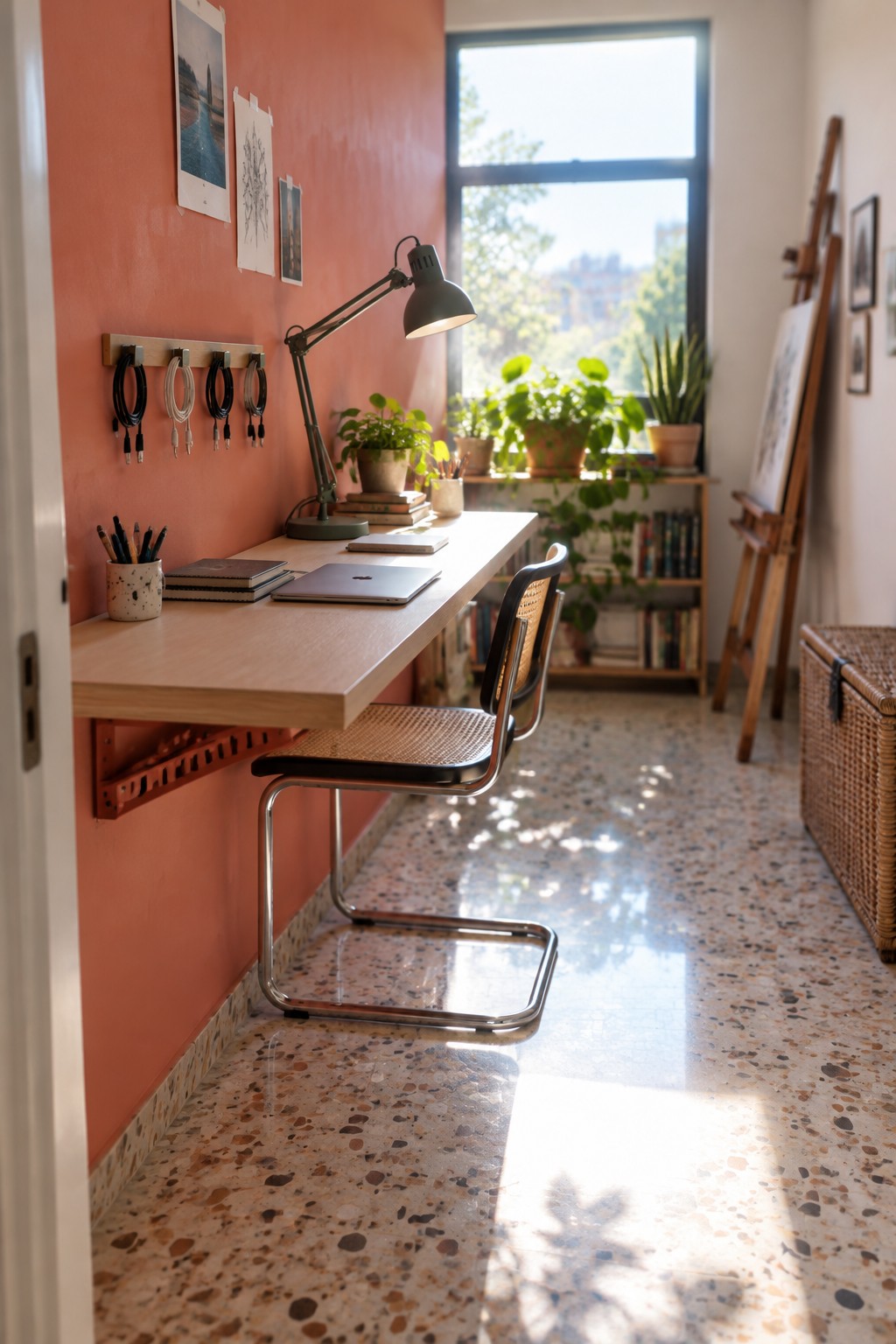
A simple wall rack for cables keeps the whole workspace feeling open and tidy. It sits right above the desk so cords stay organized and off the floor while still easy to reach when you need them.
This setup works best in smaller rooms or apartments where floor space matters. Mount the rack at a height that matches your desk, group cables by device, and you can swap things out without pulling everything apart.
Wall Baskets Keep Cables Organized
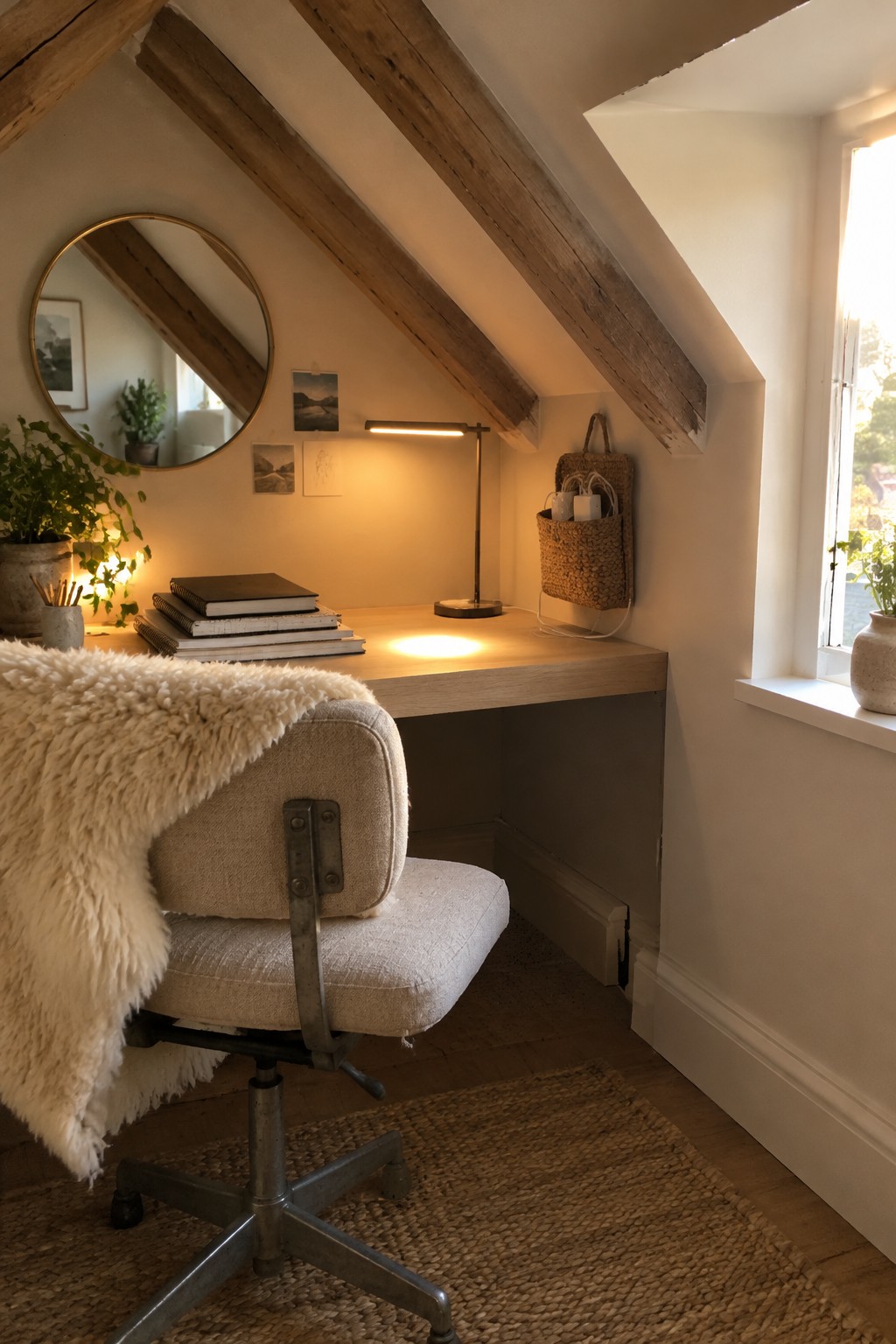
Many home offices end up with cords running across the desk or dangling to the floor. A wall basket mounted near the desk gives the power strip and extra cables a place to sit without cluttering the work surface.
This idea works best in smaller rooms or spaces like attics where outlets sit in awkward spots. Hang the basket at a reachable height so you can plug things in easily but keep the cords out of sight during the day.
Standing Desks With Built In Cable Management

A height adjustable desk makes it easy to switch between sitting and standing without dealing with messy wires every time. The clean surface and hidden routing keep cords from the monitors and peripherals out of the way, so the workspace stays practical instead of cluttered.
This approach works best in smaller home offices where every inch counts. Look for desks that have side channels or under surface trays, and mount your screens on arms so fewer cables run across the top.
Roll Top Desks Handle Cables Neatly

A roll top desk gives you a place to run cables through without leaving wires exposed across the surface. The grommet near the back keeps power cords and charging lines contained while the roll top itself hides the rest when the day is done.
This style works best in rooms where the desk stays visible all the time. It fits older homes or any space that already uses wood furniture and needs a simple way to cut down on visible clutter.
Glass Desk With Wireless Charging
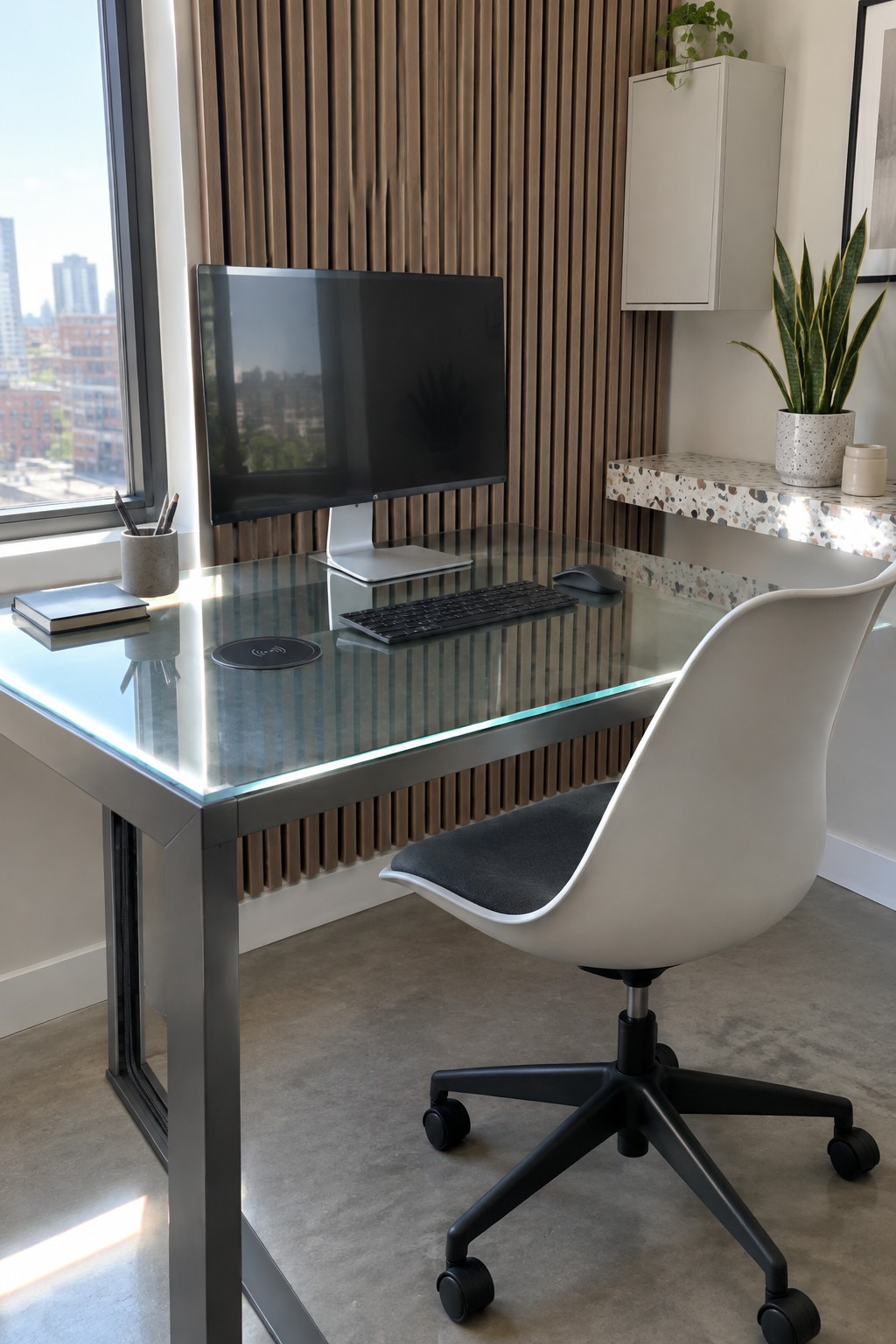
A glass desk with a wireless charging pad built right into the surface helps keep cables from cluttering up your workspace. The transparent top lets the charger sit flat without adding bulk, and it keeps the whole area looking open even when you have a monitor and keyboard in place.
This setup works well in smaller home offices where you want things to feel less heavy. Run any remaining cords down through the desk frame or along the back edge so they stay out of view while you work.
Built-In Cable Management For A Cleaner Desk

A desk with a built-in cable trough makes a big difference in how tidy a home office feels. Instead of cords trailing everywhere, the wires drop into a long channel along the back so the work surface stays clear and the whole setup looks more intentional.
This approach works best in rooms where the desk runs along a wall and you have a few devices running at once. It suits anyone planning a custom or built-in desk during a remodel, since the trough can be added before the top goes on and keeps everything accessible from below.
Wall Hooks Keep Cables Organized
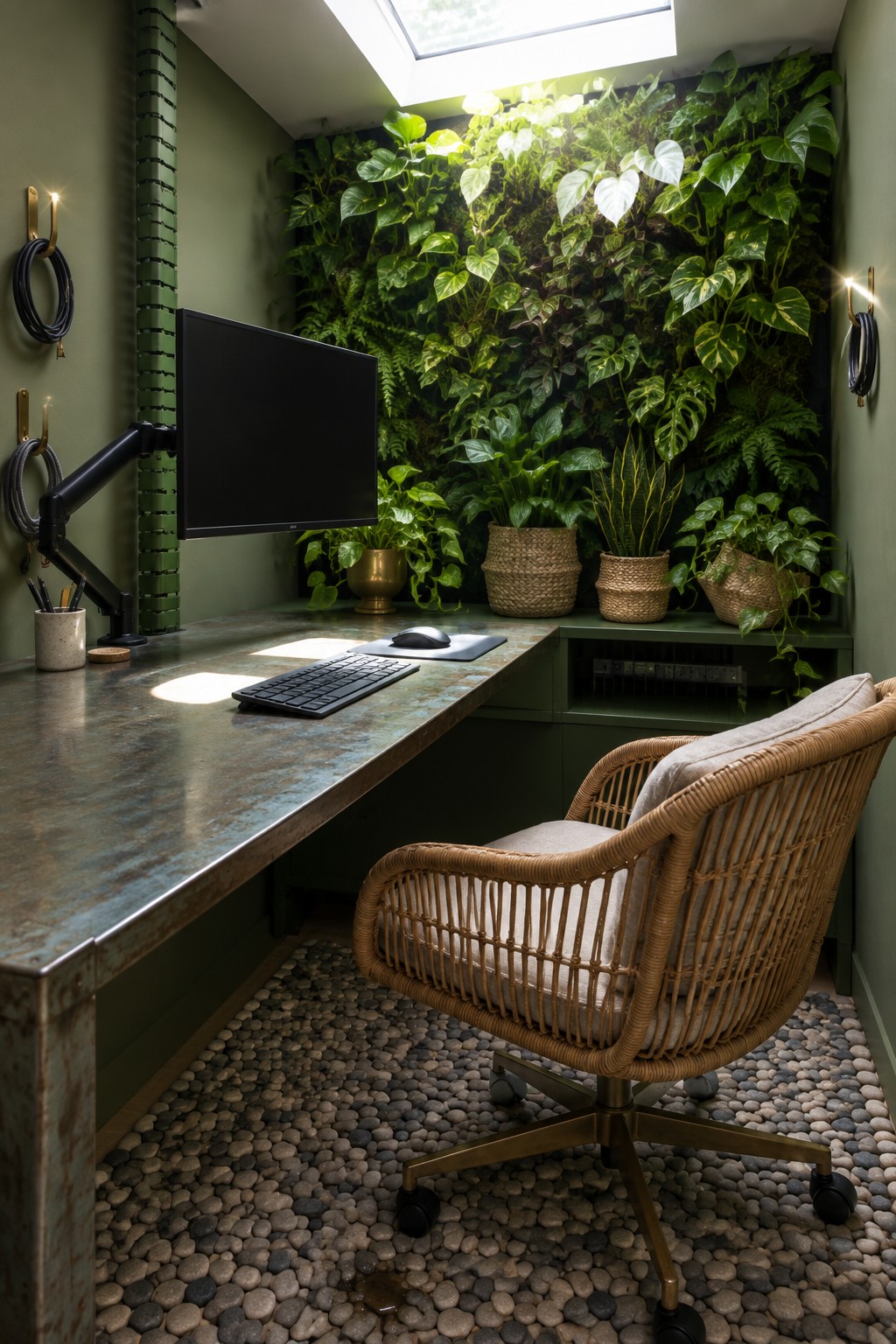
Many desks end up with cords hanging down the back or trailing across the floor. A few simple hooks mounted on the wall let you coil and hang cables out of the way when they are not needed.
This approach works best in smaller offices or rooms where the desk sits against a wall. It takes almost no space and keeps the floor clear without adding extra furniture or panels.
Pegboard Walls Keep Cables Organized And Accessible
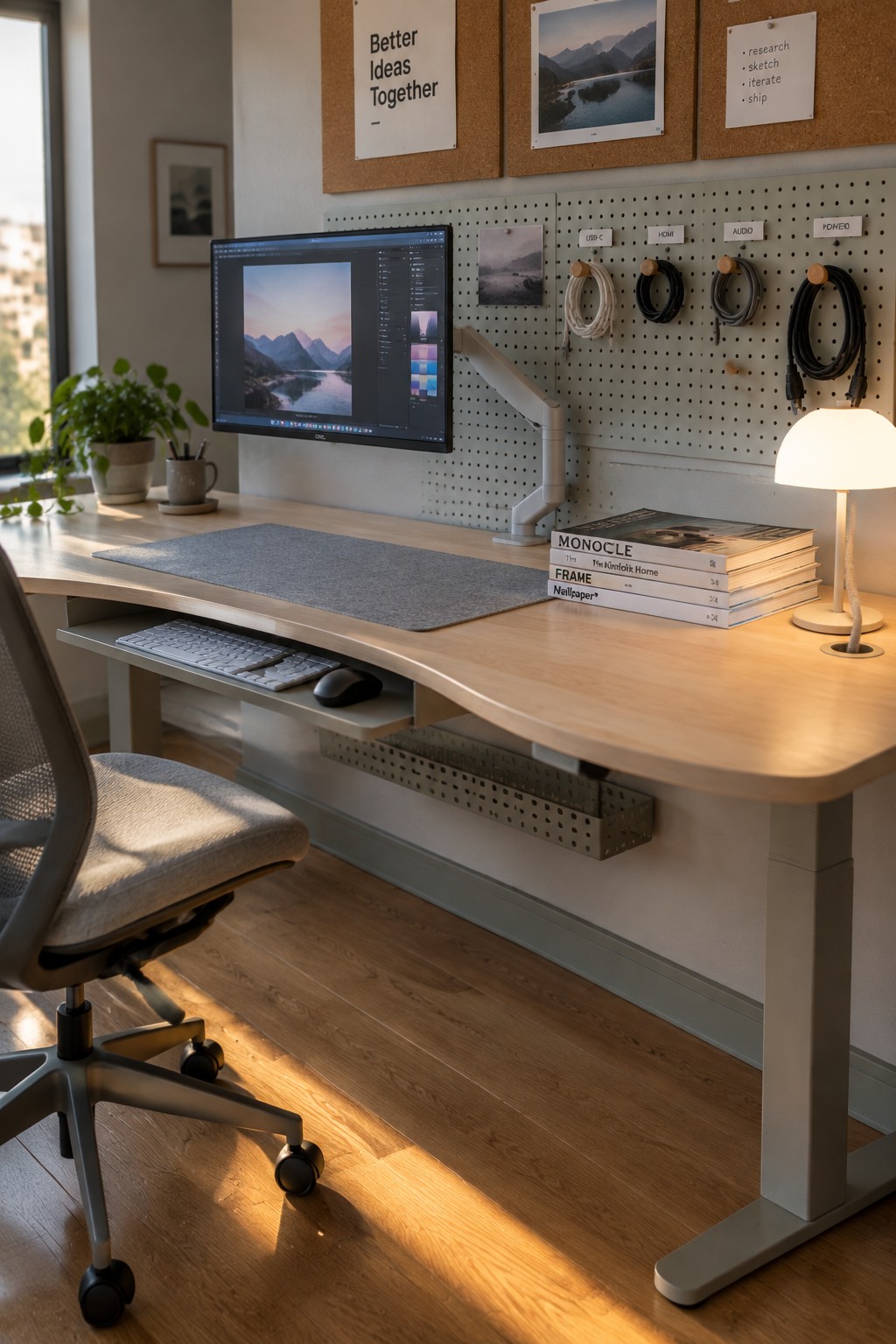
A pegboard behind the desk gives every cable its own spot. Instead of wires tangled behind the monitor or draped across the floor, you can hang them on labeled hooks sorted by type. This setup works especially well if you switch between devices often or want to keep things visible rather than tucked away in boxes.
Mount the board at a comfortable height and use simple hooks with tags so you can grab what you need without hunting. It suits smaller offices or any workspace where the desk itself stays fairly clear. Just make sure the board is deep enough to hold thicker cables without crowding the hooks.
An Under Desk Cable Box Keeps Things Tidy
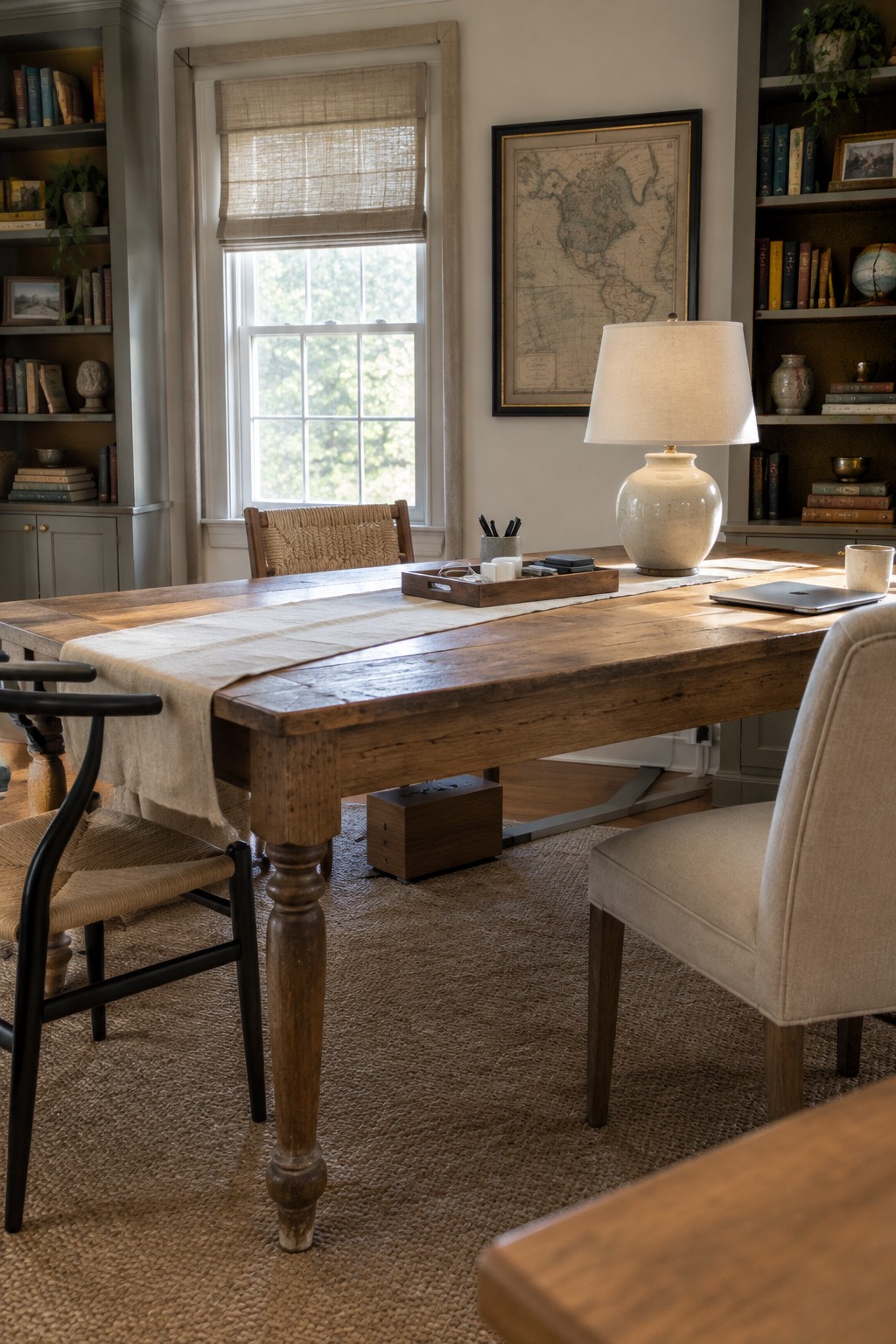
A large wooden desk can quickly turn into a tangle of cords once you add a lamp, laptop, and chargers. The small box tucked underneath gives you a place to drop excess length and power strips so the surface stays clear and the floor does not show wires.
This setup works best in rooms that already have open space below the desk and a few nearby outlets. Keep the box low enough that your knees clear it and choose one with a lid or slots so you can reach in without pulling the whole thing out.
Frequently Asked Questions
Q: How do I route cables neatly if my desk sits in the middle of the room? A: Run them along the legs with simple clips and tuck the power strip right underneath. This keeps everything off the floor and easy to reach when needed.
Q: My cables always end up in a knot behind the computer. What helps? A: Bundle similar ones together with velcro ties. Check the bundle once a month and adjust as you add devices.
Q: Can I still use cable management if I move my setup around a lot? A: Yes. Use flexible sleeves or trays that attach with adhesive. They come off clean when you need to rearrange.
